Many businesses use Google Sheets to securely store and manage their data. It can even act as a lightweight data warehouse for streamlining operations. One common use case is sending WhatsApp messages to leads stored in Google Sheets—but doing this manually is time-consuming and inefficient.
That’s where Convora’s Google Sheets integration comes in. With Convora, you can automatically send personalized WhatsApp messages using data directly from your sheet. Whether it’s a lead notification, order update, or any custom message, this setup will trigger a WhatsApp message whenever new data is added or specific changes occur in your sheet.
Let’s walk through the steps to set this up:
Step 1: Create a WhatsApp Message Template
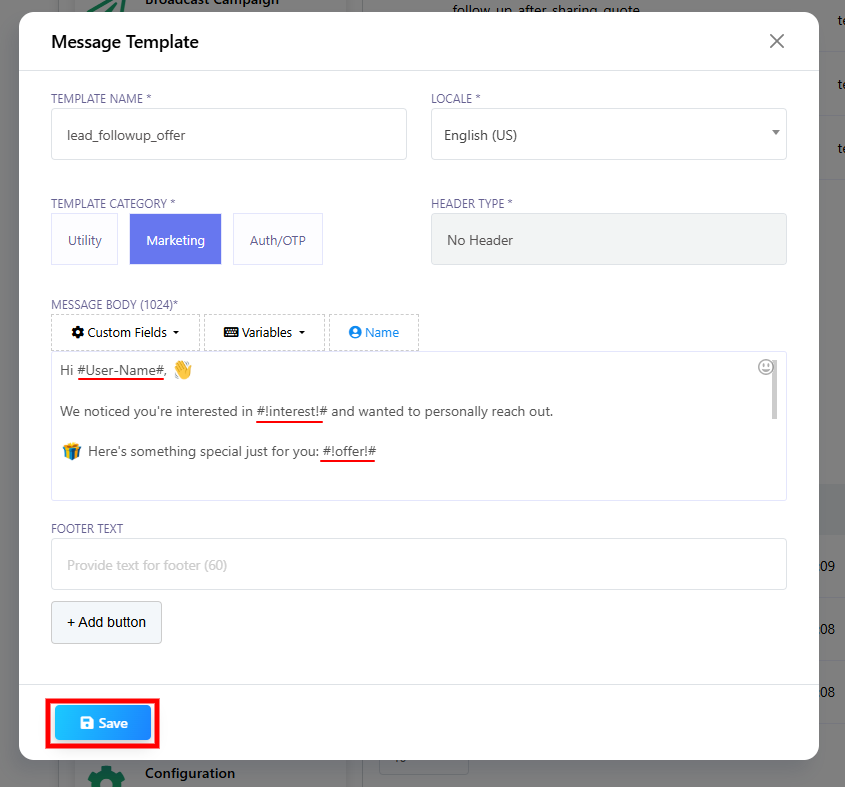
Since WhatsApp only allows business-initiated messages via approved templates, the first step is to create a template that includes variables (placeholders for your Google Sheets data).
To create your template:
-
Log in to the Convora Dashboard and go to Bot Manager → Message Template, then click Create.
-
Name your template, choose the language, and set the category to Marketing.
-
If needed, choose a header type (e.g., text, image).
-
Write your message content and insert variables where your Google Sheets data will be used.
-
Save the template and click Sync Template to submit it for approval.
-
Once approved, the template is ready for automation.
✅ Example:
“Hi {{1}}, your order #{{2}} has been shipped!”
Step 2: Create a Webhook Workflow
-
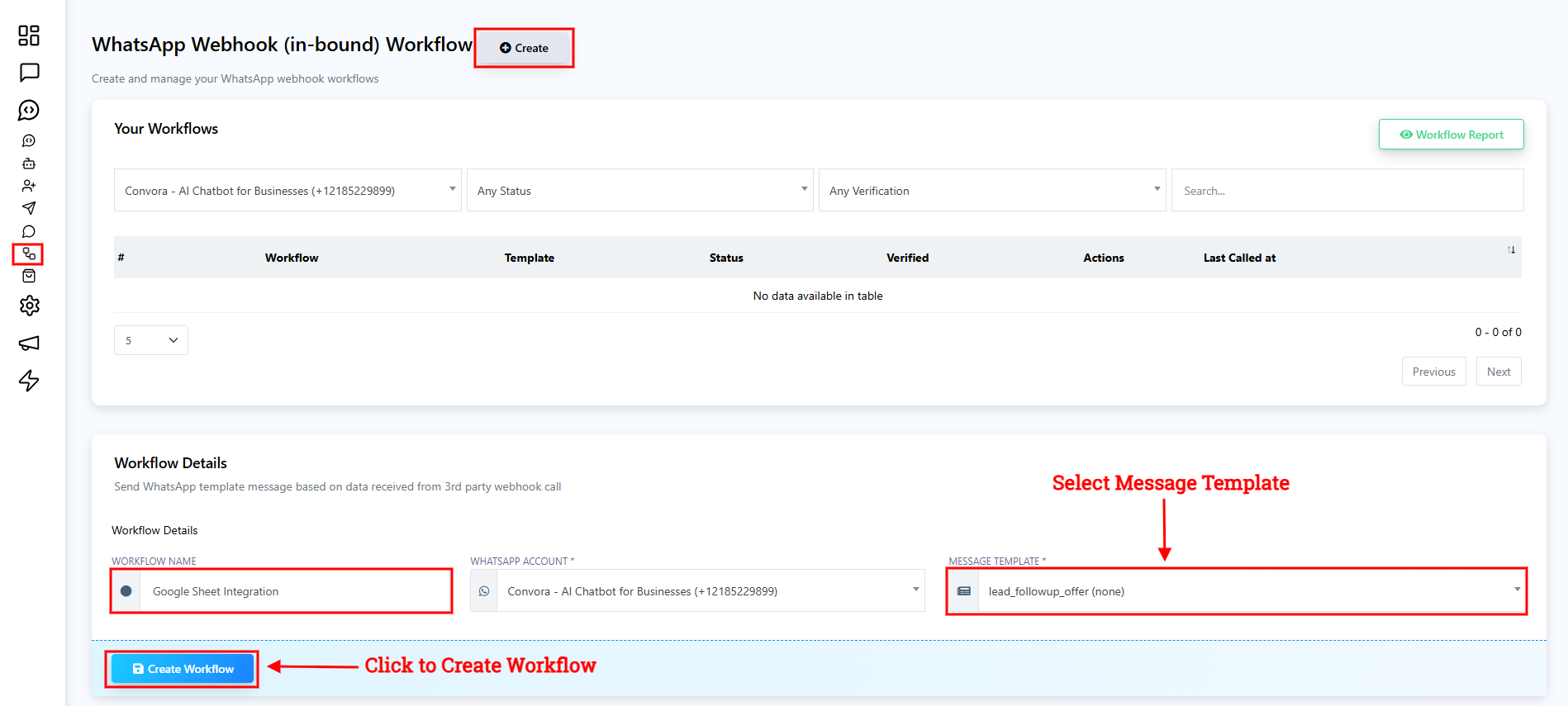
From the left menu, go to Webhook Workflow and click Create.
-
Name your workflow.
-
Select the WhatsApp number to use.
-
Choose the Message Template you created earlier.
-
Click Create Workflow.
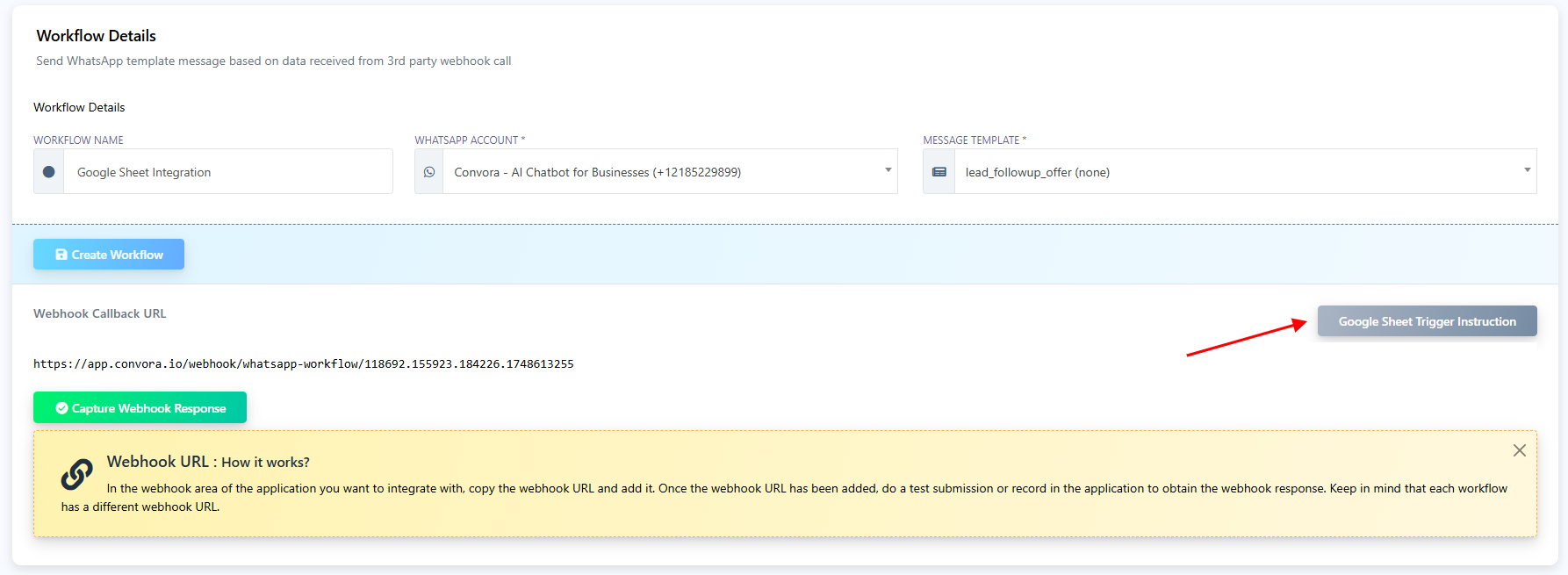
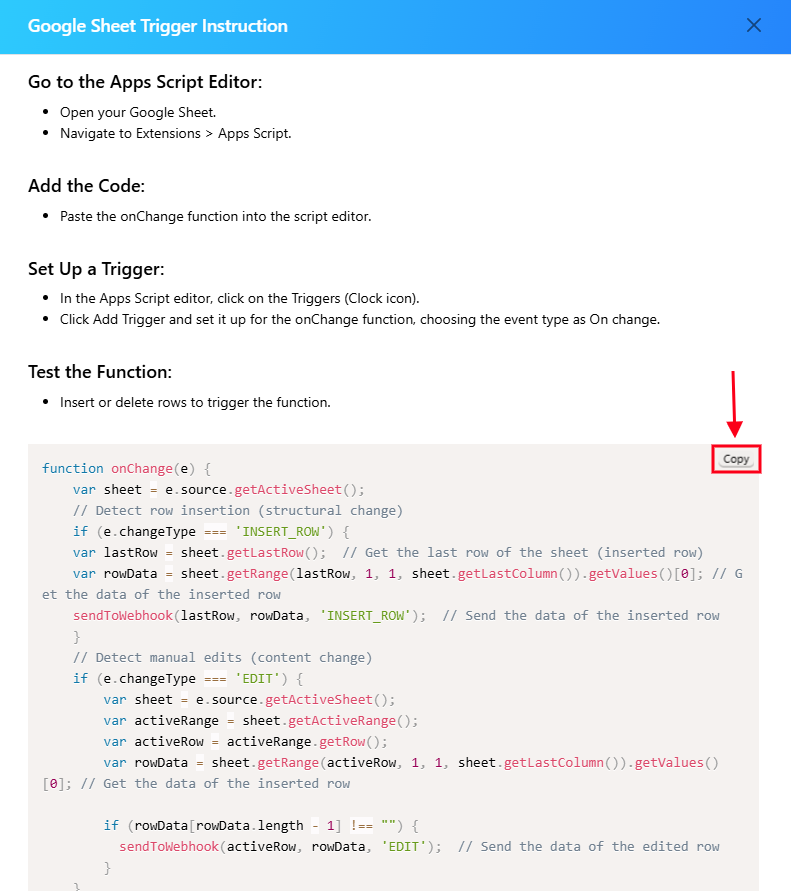
It will create a Webhook and provide a “Google Sheet trigger Instructions” button. Click on this button to get instructions. This will provide a clear instruction and a block of code. Just copy that code and go to the Google Sheet.
Make sure your Google Sheet includes a column labeled Phone Number. You can use any additional columns as variables in your message.
Step 3: Configure the Google Sheet
-
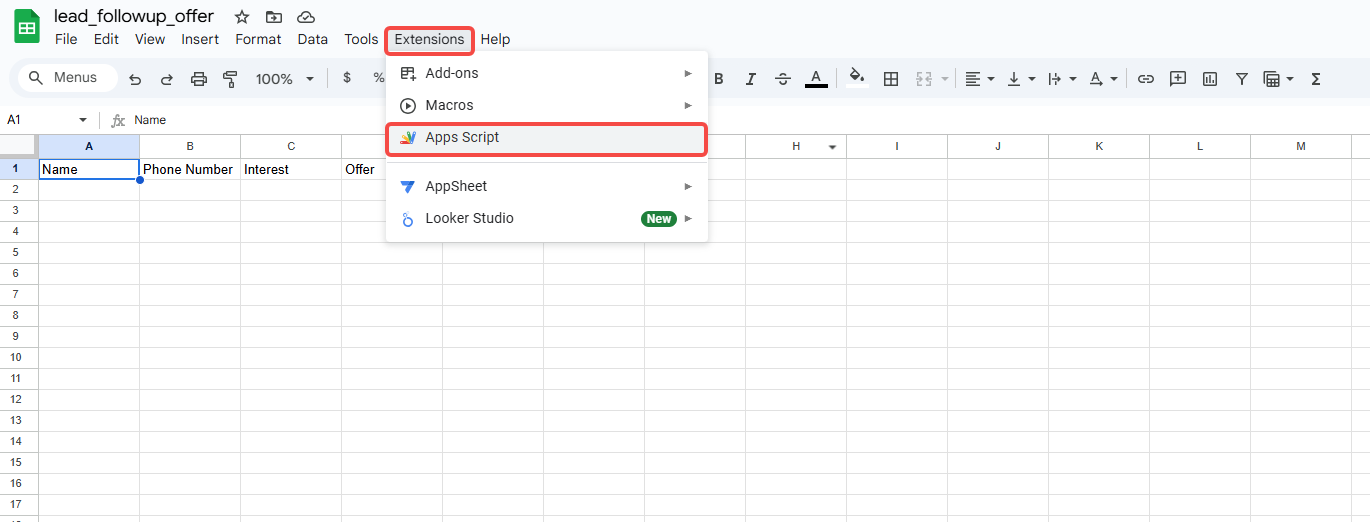
In your Google Sheet, go to Extensions → Apps Script.
-
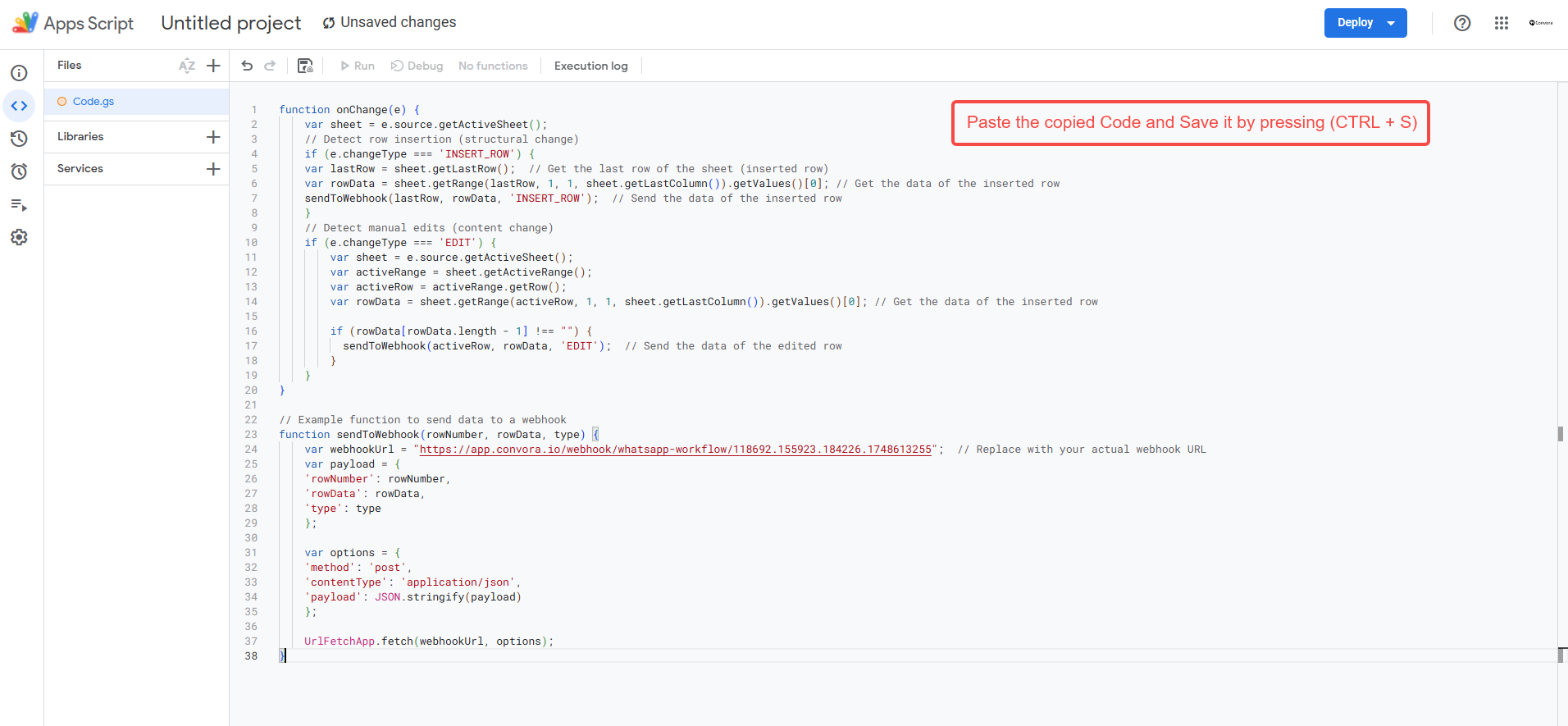
Replace the existing script with the code provided by Convora.
-
Press Ctrl + S to save the script.
-
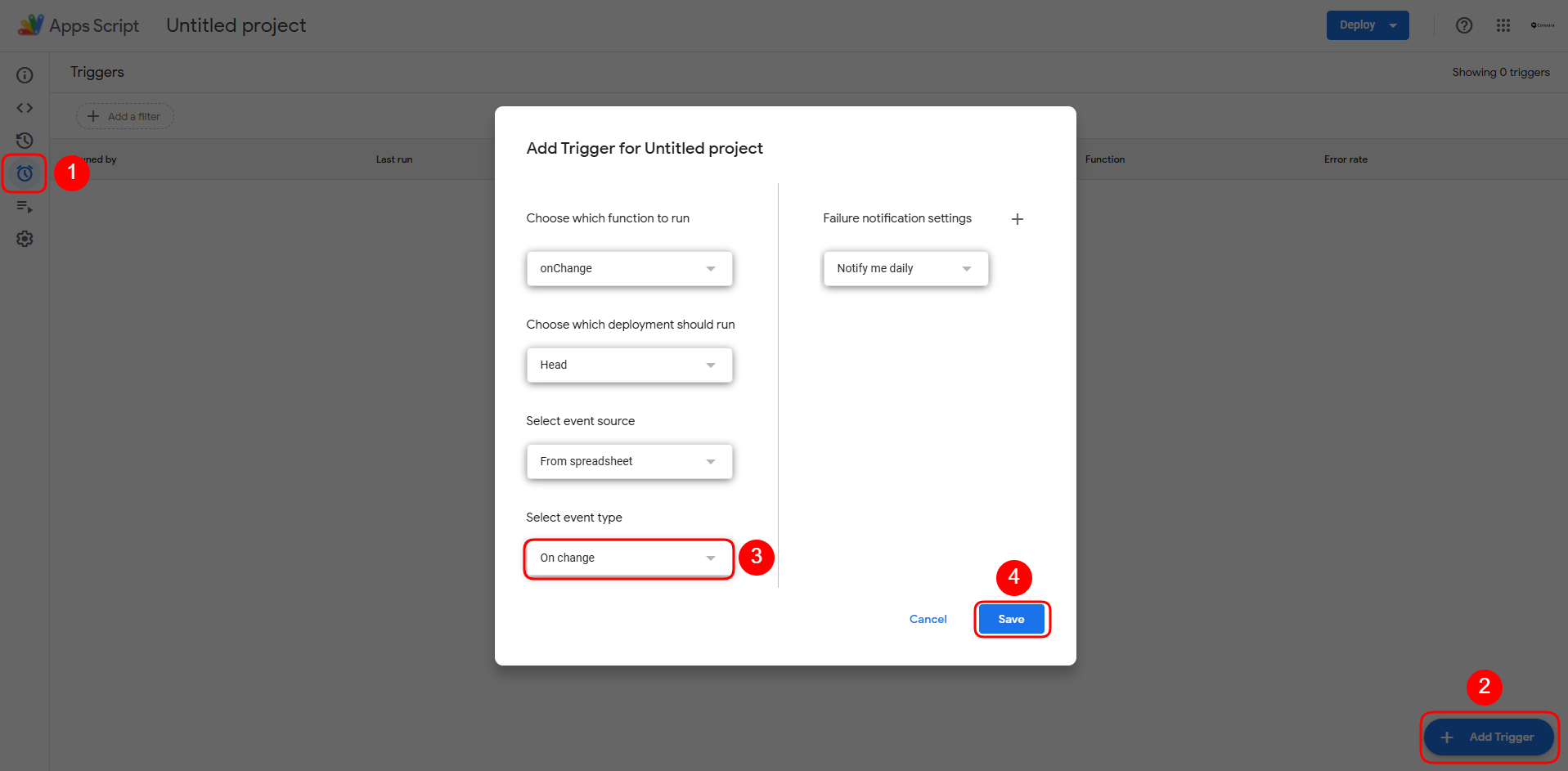
From the left menu in Apps Script, go to Triggers → Add Trigger.
-
Set the event type to On Change and save.
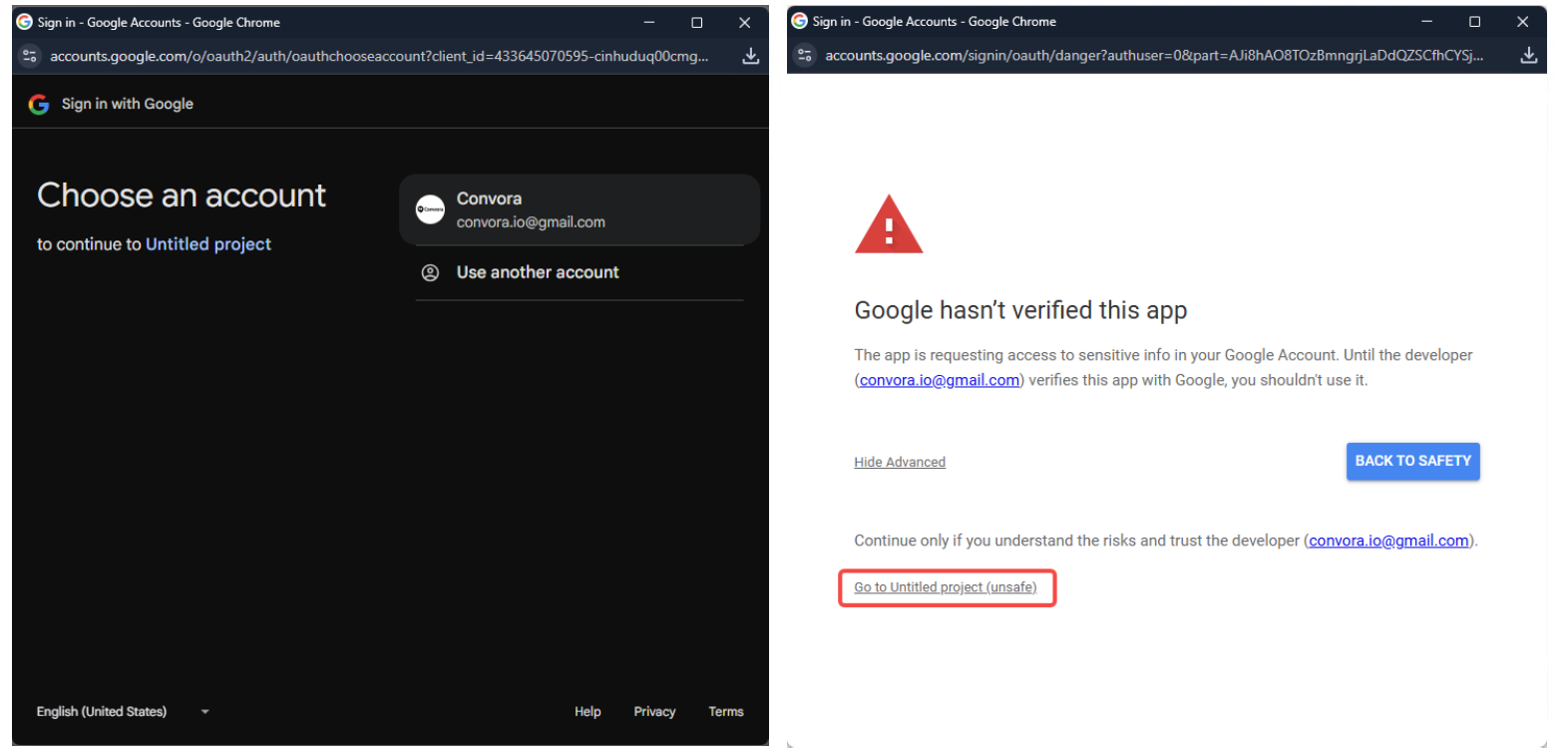
- While saving, it may ask to select the google account and verify the app. Just select your google account and then click on the Advanced option and then select “Go to project”. And then just click on Allow button.
Step 4: Map Data in Convora
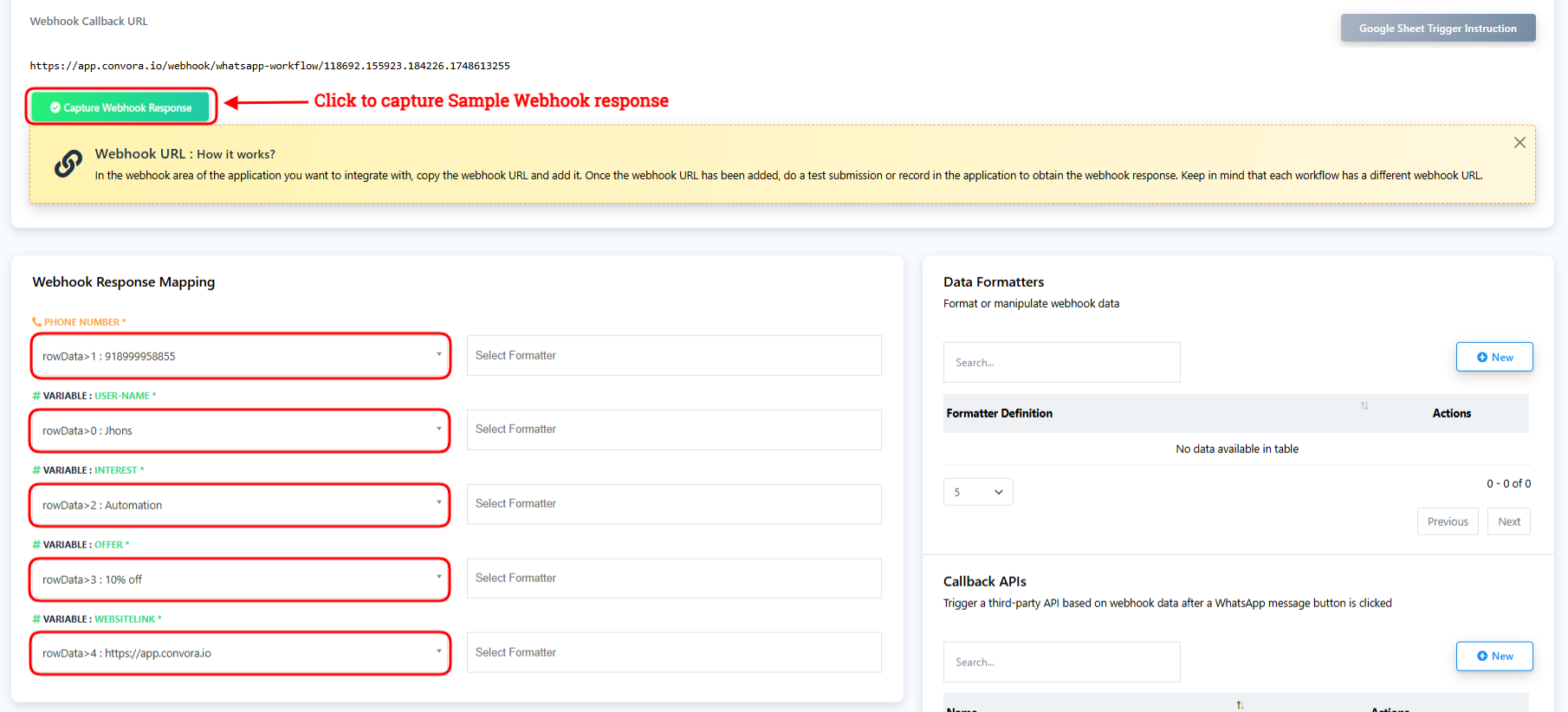
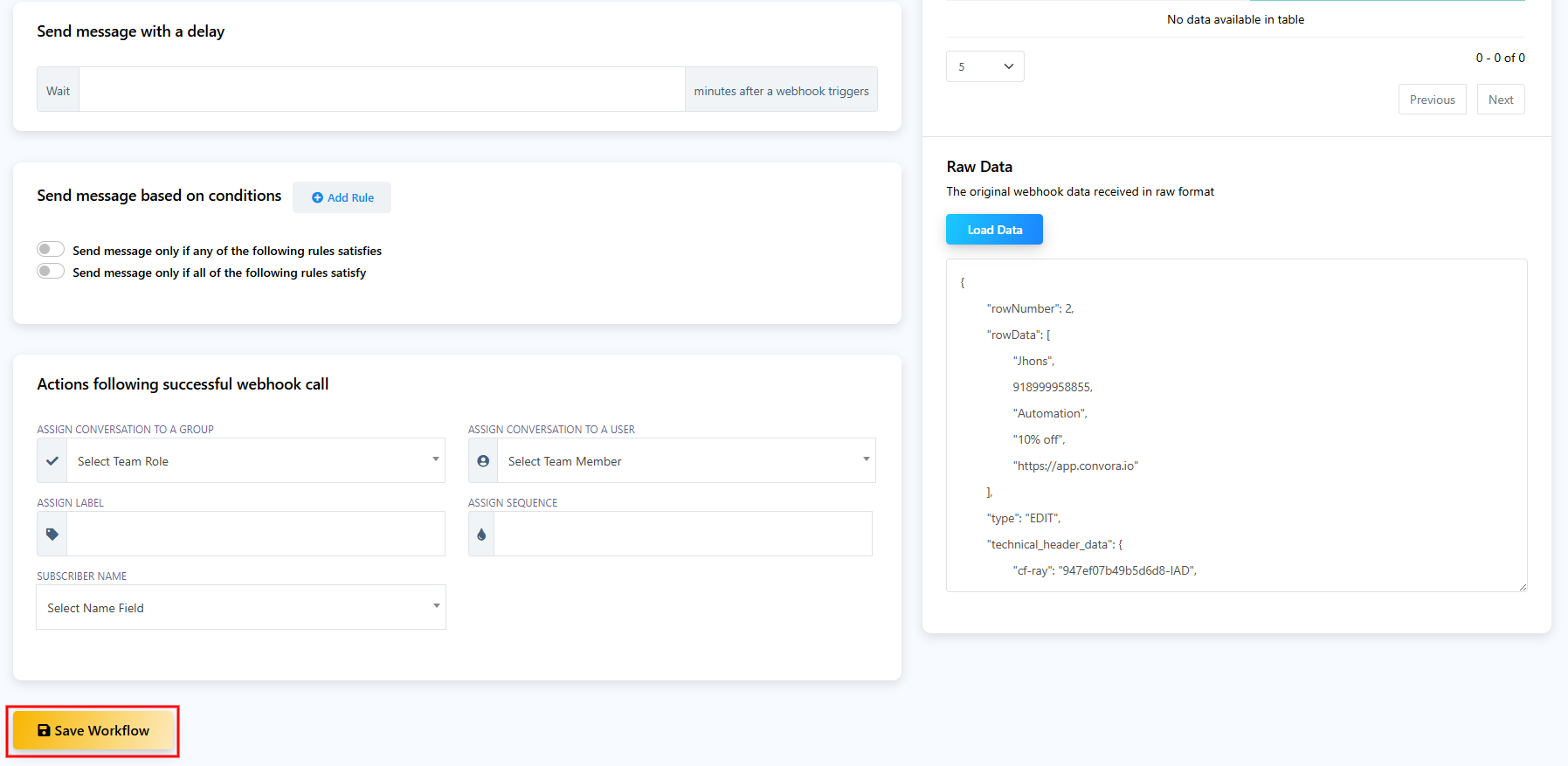
- Go back to the Convora and click on the “Capture Webhook Response” And then switch back to Google sheet and add sample data to the sheet. This data will be received on Convora as raw data, this data will help to Map the data to Message Template.
- On the phone number field, select the Phone number column data. In the same way, map the row data for the variables that were used in the message templates.
- Finally, Save the Workflow.
🎉 That’s it! Now whenever a new row is added or data changes in your Google Sheet, Convora will automatically send a WhatsApp message using the mapped data.
FAQs
1. How can I send WhatsApp messages from Google Sheets using Convora?
Answer: You can integrate Convora with Google Sheets using a webhook and Apps Script. Once configured, it triggers WhatsApp messages automatically based on your sheet’s data.
2. Do I need a WhatsApp Business Account?
Answer: Yes. To use WhatsApp APIs and send automated messages, a WhatsApp Business Account is required.
3. Can I send personalized messages?
Answer: Absolutely! You can use data like names, dates, order IDs, etc., from your sheet to personalize each message using variables in the template.
4. What types of messages can I send?
Answer: You can send text messages, images, documents, links, and more—based on your business needs.
5. Is there a cost to use Convora for sending WhatsApp messages?
Answer: Yes. Convora charges based on message credits, and WhatsApp (Meta) also applies messaging fees as per its business policy.
6. Can I schedule messages?
Answer: Yes. You can schedule messages using Google Sheets functions and Convora workflows for time-based automation.
7. Are there any limitations on message content?
Answer: Yes. WhatsApp restricts promotional content and spam. Always follow WhatsApp’s messaging policies to avoid account penalties.